You turn on your computer, and within seconds, you’re clicking icons, opening files, and browsing the web. But have you ever wondered what makes all this possible? The magic—and the manager—behind everything you do is the Operating System (OS). If computer hardware is the body (the brain, the limbs, the heart), the operating system is the personality, consciousness, and instinct. It’s the most important software on your computer, and understanding it removes a huge layer of mystery. This guide will explain what an OS does and demystify the three major players: Windows, macOS, and Linux.
What is an Operating System, Really?
Think of your computer as a sophisticated, but very literal, orchestra. The hardware components (CPU, RAM, GPU) are the talented musicians. Individually, they can make sound, but without coordination, it’s just noise. The operating system is the conductor. It doesn’t play an instrument, but it:
-
Tells each musician when to play and how loud.
-
Hands out the sheet music (program instructions).
-
Ensures the violins don’t drown out the flutes.
-
Manages the stage and the audience (that’s you!).
In technical terms, the OS is a master program that acts as an intermediary between you and the hardware. It manages the computer’s memory, processes, software, and all of its files. Without an OS, your expensive computer is just an inert collection of plastic and silicon.
The Core Jobs of Any Operating System
All operating systems, from the one on your laptop to the one in your car’s infotainment system, perform these essential functions:
1. The Resource Manager: The Fair Referee
Your computer has limited resources: CPU power, RAM, storage space. The OS is the ultimate referee, deciding which running program (or “process”) gets to use the CPU next, how much memory each app gets, and how hardware like the printer is shared among users. This happens so swiftly and seamlessly that you, the user, never see the fierce competition happening under the hood.
2. The Hardware Communicator: The Universal Translator
Hardware speaks in low-level electronic signals (machine code). You and your applications speak in clicks, words, and high-level commands. The OS provides drivers—small translator programs—so that your Word document can tell the printer to print, or your YouTube video can tell the speakers to play sound. It creates a stable, consistent way for software to talk to hardware without needing to know the exact model of every component.
3. The File System Organizer: The Meticulous Librarian
The OS creates a logical structure for storing every single bit of data on your storage drive. It manages the file system (like NTFS for Windows, APFS for macOS, or ext4 for Linux), keeping track of where files are physically located on the disk, their names, sizes, and permissions. When you search for “vacation_photo.jpg,” the OS is the librarian who knows exactly which shelf it’s on.
4. The User Interface (UI) Provider: The Friendly Receptionist
This is the part you actually see and touch. The UI is how you interact with the OS. It comes in two main forms:
-
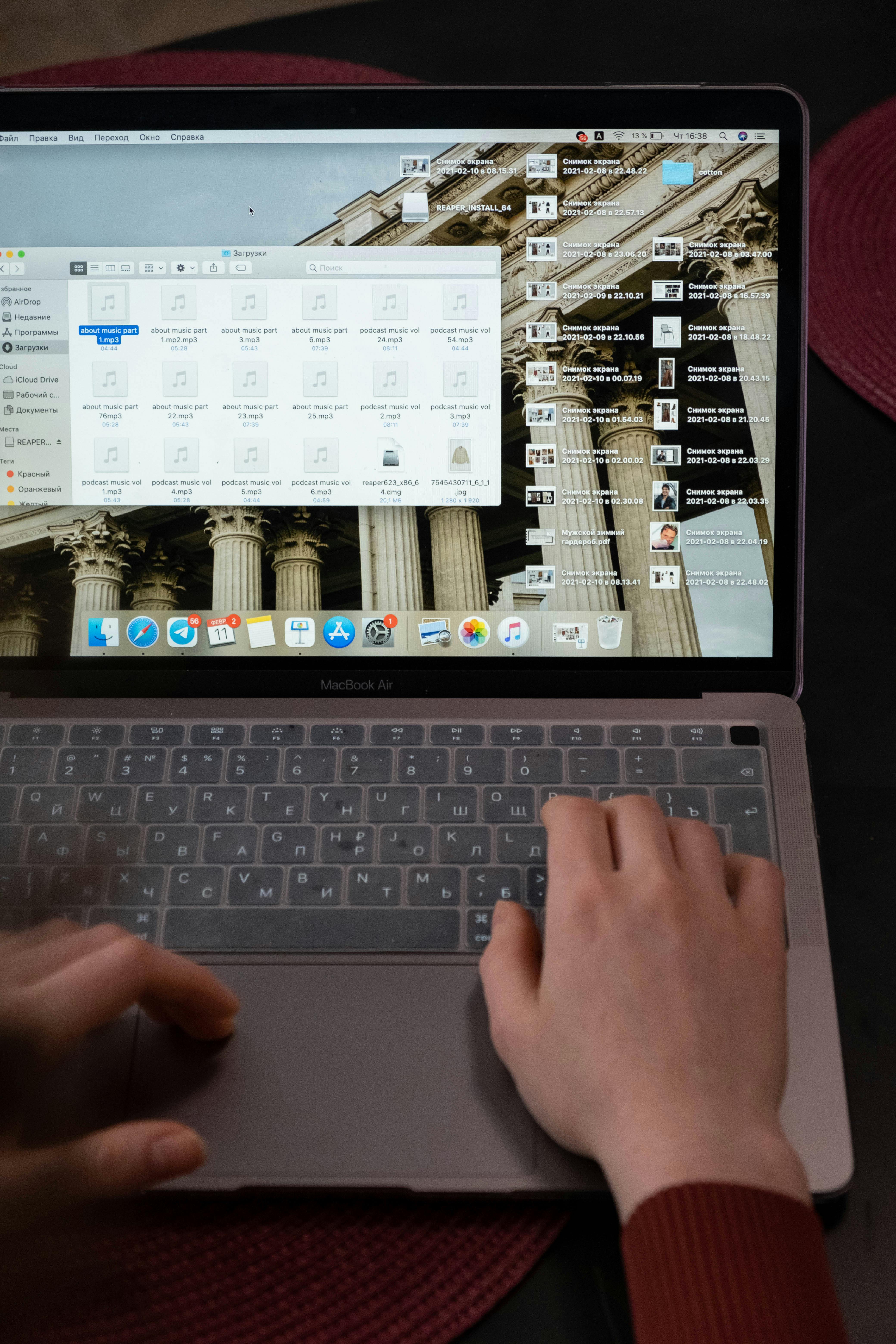
Graphical User Interface (GUI): The familiar desktop with icons, windows, and menus. You use a mouse and keyboard to point and click.
-
Command-Line Interface (CLI): A text-based screen where you type specific commands. (Think of movies where hackers type furiously into a black window).
5. The Platform for Applications: The Foundation
Apps (like Chrome, Spotify, or Photoshop) are built to run on top of a specific OS. The OS provides them with common services and a stable environment so developers don’t have to reinvent the wheel for every single function. That’s why you can’t run a macOS app directly on a Windows PC.
Meet the Big Three: Windows, macOS, and Linux
Now, let’s meet the three most common conductors in the personal computing world. Each has its own philosophy, strengths, and typical user.
Windows: The Versatile Everywhere-OS
-
Developed by: Microsoft
-
Market Share: The dominant player on most desktops/laptops worldwide.
-
The Philosophy: Accessibility and compatibility. Windows aims to run on the widest variety of hardware from countless manufacturers (Dell, HP, Lenovo, etc.) and support the largest library of software, especially business and gaming applications.
-
The User Experience: Familiar, highly customizable, and sometimes complex. Its “Start Menu” and “Taskbar” are iconic. Because it’s so widespread, it’s also the biggest target for malware, making built-in security tools like Windows Defender critical.
-
Who It’s For: Gamers (thanks to DirectX), business users in corporate environments, general consumers, and anyone who needs broad software/hardware compatibility.
-
Key Term: You mostly interact with the Desktop and File Explorer.
macOS: The Integrated Experience
-
Developed by: Apple
-
Market Share: Significant, especially among creatives and professionals.
-
The Philosophy: A seamless, unified, and controlled user experience. Apple designs both the hardware (MacBooks, iMacs) and the software (macOS). This vertical integration allows for exceptional optimization, stability, and a consistent design language.
-
The User Experience: Polished, intuitive, and known for its ease of use. Features like the Dock, Spotlight Search, and robust trackpad gestures are hallmarks. The ecosystem is a major draw—handoff between a Mac, iPhone, and iPad feels magical. Software is often curated through the App Store.
-
Who It’s For: Creatives (graphic designers, video editors, musicians), developers, students, and users invested in the Apple ecosystem who value design and simplicity.
-
Key Term: You mostly interact with the Finder and the Dock.
Linux: The Power of Choice and Freedom
-
Developed by: A global community of developers, led by Linus Torvalds.
-
Market Share: Small on desktops, but colossal on servers, supercomputers, and embedded systems (like Android phones!).
-
The Philosophy: Open-source freedom, transparency, and security. The core OS (the kernel) is free, and its code can be viewed, modified, and redistributed by anyone. This leads to countless variations called distributions (“distros”).
-
The User Experience: This is where choice reigns supreme. Distros like Ubuntu and Linux Mint offer user-friendly GUIs that rival Windows and macOS, making them great for beginners. Others cater to developers, sysadmins, or privacy advocates. You have unparalleled control to make the system behave exactly as you wish.
-
Who It’s For: Developers, system administrators, privacy-conscious users, tech hobbyists, and anyone who wants to learn how computers work at a deeper level.
-
Key Term: You might interact with a Desktop Environment (like GNOME or KDE) and the powerful Terminal.
How They Handle a Simple Task: Opening a Program
Let’s see our three conductors in action with the simple task of you opening a web browser.
-
Your Action: You double-click the Chrome icon.
-
The OS Hears You: The UI (Windows Explorer/macOS Finder/Linux Desktop) registers your mouse click.
-
The Search Begins: The OS’s file system locates the Chrome application files on your storage drive.
-
Resources Assigned: The OS allocates a portion of RAM and prepares a space in the CPU’s queue for Chrome to run.
-
Translation Time: It uses drivers to ensure Chrome can draw its window on your specific monitor and play sounds through your specific speakers.
-
Window Management: The OS creates a window, puts it on your desktop, and manages its borders, minimize/maximize buttons, and position among other windows.
-
Ongoing Management: As you browse, the OS continues to manage Chrome’s memory use, network calls, and input from your keyboard.
The process is fundamentally the same across all three, but the “look and feel” and underlying pathways differ.
Practical Insights for Your Daily Use
-
Updates Are Non-Negotiable: OS updates aren’t just about new features. They are critical for security patches that fix vulnerabilities and stability improvements. Enable automatic updates.
-
File Systems Matter: You can’t typically take a Windows-formatted USB drive and write files to it on a Mac without reformatting (which erases data). This is because they use different default file systems. For external drives, use exFAT for universal compatibility between Windows and macOS.
-
The “Kernel” is the True Core: When people talk about Linux, they often mean the Linux kernel. The distro (like Ubuntu) is the kernel plus a collection of software, a package manager, and a desktop environment that makes a complete OS.
FAQ: Your Operating System Questions Answered
Q: Which OS is the “best” for a beginner?
A: There’s no single best. Windows is the most common, so help is easy to find. macOS is famously intuitive and user-friendly out of the box. Modern, beginner-focused Linux distros like Ubuntu are also surprisingly easy. The best choice often depends on the computer you already have or are buying.
Q: Can I try more than one?
A: Absolutely! You can:
-
Dual-Boot: Install two OSes side-by-side on one computer and choose which to boot into at startup.
-
Use a Virtual Machine (VM): Run one OS as a program inside another (e.g., run Ubuntu in a window on your Windows desktop). Software like VirtualBox makes this free and accessible.
Q: Why do some programs only work on one OS?
A: Programs are compiled to run on a specific OS’s foundation. Developers must create separate versions for each OS. This is changing with cross-platform frameworks, but it’s why you can’t install a .exe (Windows) file on a Mac.
Q: Is Linux really free?
A: Yes, in the most important sense: Free as in freedom. You have the liberty to use, study, change, and share it. Most popular distros are also free as in cost (gratis). Professional support is available for enterprise versions.
Q: My computer is slow. Will a new OS help?
A: Sometimes. Lightweight Linux distros (like Lubuntu) can breathe new life into old hardware. However, slowness is often due to outdated hardware (like a slow HDD or lack of RAM), which an OS change can’t fully fix.
The Final Takeaway: You’re Already an Expert User
You interact with an operating system every time you use a computer. Now, when you see the Apple logo on boot, the Windows start-up sound, or the Ubuntu loading circle, you know the conductor is stepping onto the podium. You understand that this essential software is managing a symphony of hardware, all to bring your digital world to life. Whether you prefer the ubiquitous compatibility of Windows, the sleek integration of macOS, or the empowering freedom of Linux, you’re now equipped with the knowledge to understand the stage upon which all your digital activities play out.