
How to Use a Computer for the First Time: A Friendly, Stress-Free Guide
Welcome! If you’re sitting in front of a computer for the first time and feel a mix of excitement and nervousness, you’re in the right place. This guide is designed to take you from pressing the power button to completing your first tasks with confidence. Think of this as your friendly companion, walking you through each step without confusing jargon. Let’s demystify your computer together.
Before You Begin: A Quick Mindset Shift
First, remember that every expert was once a beginner. Your computer is a tool, designed to be helpful, not intimidating. You can’t “break it” by clicking the wrong button. We’ll take it slow, step-by-step. Ready? Let’s go.
Step 1: The Very First Step – Turning It On
This might seem obvious, but it’s where every journey starts.
-
Locate the Power Button: On a desktop computer, this is usually a button on the front of the large box (the “tower”). On a laptop, it’s typically a button on the keyboard area or the side of the device.
-
Press It: Give the button a firm press. You should hear a whirring sound (the fan) and see lights turn on. The screen will light up.
-
Wait Patiently: The computer needs a minute or two to “boot up” (start all its internal systems). This is completely normal.
Step 2: Getting to Know the Hardware (The Physical Parts)
Let’s identify the key components you’ll interact with:
-
The Monitor/Screen: This is where you see everything. It’s your computer’s visual output.
-
The Tower (Desktop) or Body (Laptop): This is the brain. It holds all the components that make the computer work.
-
The Keyboard: Your primary tool for typing words and numbers. It’s very similar to a typewriter keyboard.
-
The Mouse: This small device controls a pointer (cursor) on your screen. Sliding it moves the pointer. It usually has two main buttons (left and right) and a scroll wheel in the middle.
-
Speakers: For sound. They may be built into the monitor or laptop.
-
Webcam (Common on Laptops): A small camera above the screen for video calls.
Step 3: Meeting the Desktop – Your Digital Home Base
Once the computer finishes starting, you’ll see the Desktop. This is your main workspace. Think of it as the top of a real desk, where you place the items you use most.
-
Icons: These are small pictures on the desktop. Double-clicking an icon with the left mouse button opens a program or file. Common icons include a trash can (for deleted files) and a web browser (like a blue “E” or a colorful circle).
-
Taskbar (Windows) or Dock (Mac): This is the bar, usually at the bottom of the screen. It shows programs that are open and has a shortcut to your main menu (the Start button on Windows or the Apple icon on Mac).
Step 4: Mastering the Mouse and Touchpad
Using a Mouse:
-
Moving: Slide the mouse on your desk. The pointer on the screen moves in the same direction.
-
Left Click: Press the left button once. This is how you select things.
-
Double-Click: Quickly press the left button twice. This is how you open programs or files.
-
Right Click: Press the right button once. This opens a special context menu with extra options related to what you’re clicking on.
-
Scroll Wheel: Roll it up or down to move a page up or down without clicking.
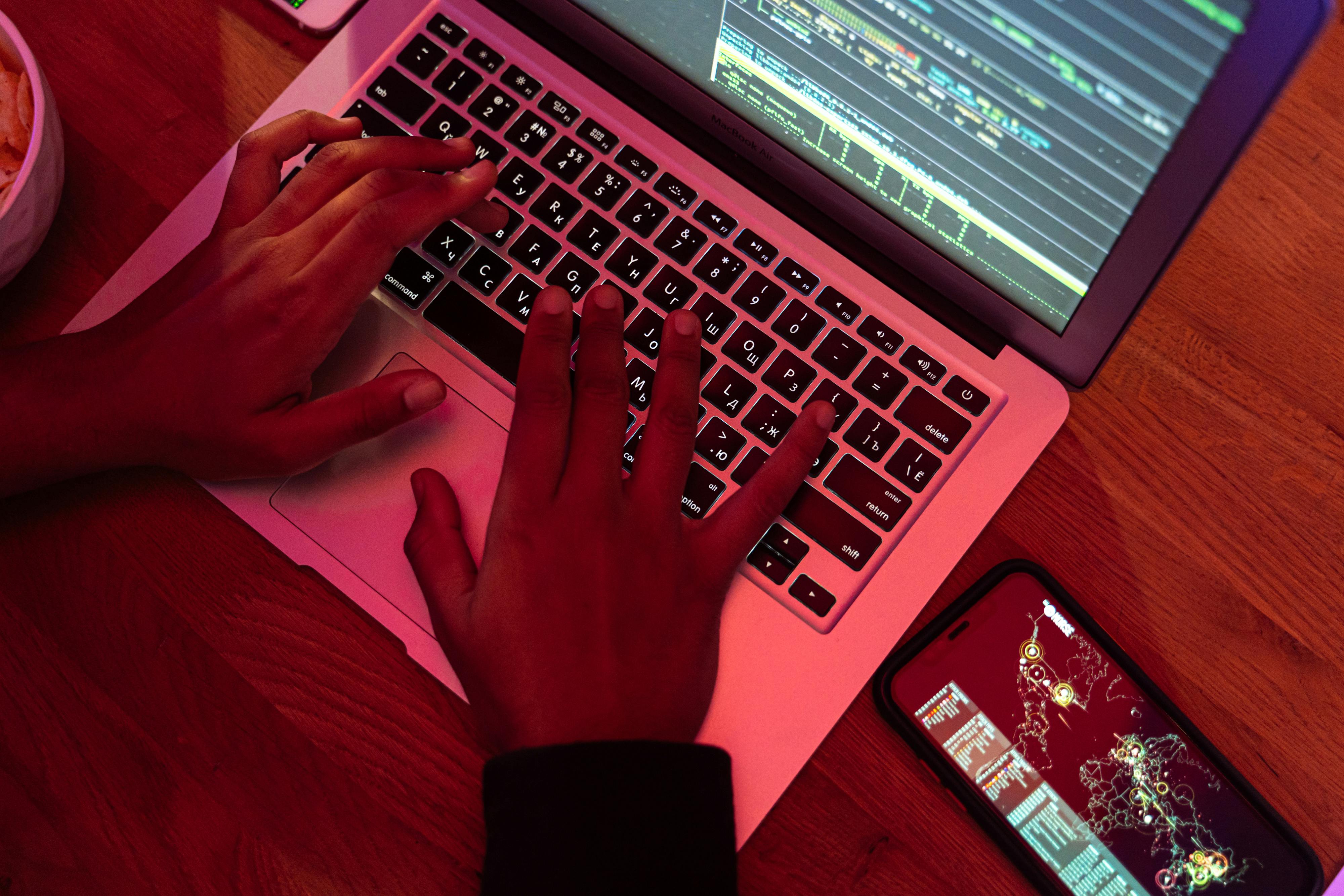
Using a Laptop Touchpad: The touchpad below the keyboard does the same job. Slide your finger to move the pointer. Tap the pad to left-click. Usually, there are two buttons below it for left and right clicks, or you can tap with two fingers for a right-click.
Step 5: Your First Mission – Opening a Program
Let’s open a program you’ll use often: a web browser (like Google Chrome, Microsoft Edge, or Safari) to access the internet.
-
Move your mouse pointer over the browser icon (it might say “Chrome” or “Edge”).
-
Double-click the left mouse button.
-
The program will open in a new window—a rectangular box on your screen. You can have multiple windows open at once.
Step 6: Learning the Keyboard Basics
You don’t need to memorize everything. Start with these keys:
-
Letter & Number Keys: Type as you would on a phone or typewriter. Press the Spacebar (the long key at the bottom) to make spaces.
-
Enter/Return: Moves the cursor to the next line (like in typing) or “submits” information (like a search).
-
Backspace: Erases the character to the left of the blinking cursor.
-
Delete: Erases the character to the right of the blinking cursor.
-
Shift: Hold it down to type CAPITAL LETTERS or the upper symbol on a key (like the @ sign above the number 2).
-
Caps Lock: Press it once to type in ALL CAPS. Press it again to turn it off.
Step 7: Connecting to the Internet
To browse the web or send emails, you need an internet connection.
-
Look for a Wi-Fi symbol (often looks like a fan or curved lines) in the top-right (Mac) or bottom-right (Windows) corner of your screen.
-
Click it to see a list of available networks.
-
Select your home network. It will ask for a password (this is usually on your router). Type it in and click “Connect.”
-
Once connected, open your browser and try visiting a simple website like
www.wikipedia.org. Type the address into the long bar at the top and press Enter.

Step 8: Practicing Essential Skills
Here are three simple, safe tasks to build muscle memory:
-
Create a Folder: Right-click on an empty part of your desktop. Move your pointer to New and then select Folder. Give it a name like “My First Folder.” This helps you organize files later.
-
Type a Simple Document: Open a program like Notepad (Windows) or TextEdit (Mac). Just start typing a few sentences about your day. Don’t worry about saving it yet.
-
Practice Scrolling: Open a long webpage (like a news site) and use your mouse’s scroll wheel or the touchpad to move up and down the page.
Step 9: How to Properly Turn Off the Computer
Never just hit the power button while it’s on! You need to shut down properly so the computer can save its work.
-
On Windows: Click the Start button (Windows icon) in the bottom-left, then click the power icon and select Shut down.
-
On Mac: Click the Apple menu in the top-left corner and select Shut Down.
-
Wait for the screen to go completely black and the machine’s fans to stop before you unplug anything.
Common First-Time User Questions (FAQ)
Q: I clicked something and now my screen looks weird. What do I do?
A: Don’t panic. Often, pressing the Escape (Esc) key in the top-left of the keyboard will cancel what you just did. If a program is acting strange, you can usually close it by clicking the X in the top-right corner of its window.
Q: How do I get help if I’m stuck?
A: Your computer has built-in help! Try typing your question into the search bar in the Start Menu (Windows) or Spotlight (Mac – press Command+Spacebar). You can also use your browser to search for your exact problem (e.g., “how to change my desktop background Windows 11”).
Q: What about viruses and staying safe?
A: This is important. Be cautious online:
-
Use built-in security: Windows has Windows Security, and Macs have XProtect. Keep them updated.
-
Be skeptical: Don’t click on pop-up ads that say “YOU’VE WON!” or emails from people you don’t know asking for information.
-
Stick to trusted websites for now, like major news, government, or educational sites.
Q: I made a mistake. How do I undo it?
A: The undo command is your best friend! If you delete text or move a file by accident, simply press Ctrl + Z (on Windows) or Command + Z (on Mac). This often reverses the last action.
Final Words of Encouragement
Your first time using a computer is about exploration. Click on things, see what happens. The most effective way to learn is by doing. Set yourself small, fun goals: “Today I will learn to send an email to a family member,” or “I will find a recipe online.”
Remember, speed and skill come with practice. Celebrate the small wins—successfully printing a document, having your first video call, or finally organizing your desktop. You’ve just taken the first step into a vast and empowering digital world. Welcome, and happy computing