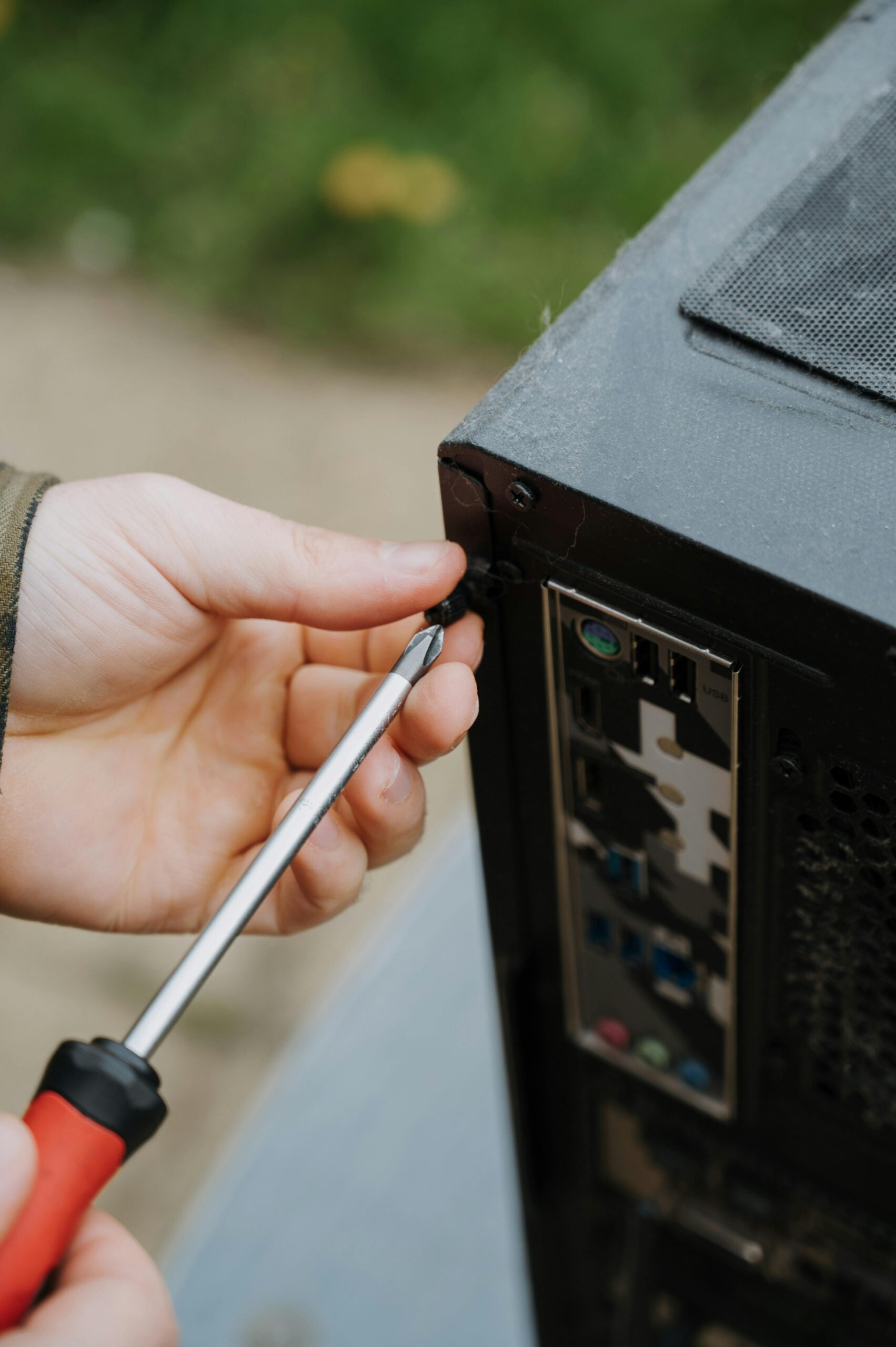
Have you ever looked at a computer and wondered, “What exactly is going on in there?” You’re not alone. For many, the inside of a computer seems like a mysterious world of circuits and jargon. But understanding computer hardware doesn’t require an engineering degree. Think of it like learning about the parts of a car—you don’t need to be a mechanic to know what the engine does. This guide will walk you through the essential components of your computer, explain what they do in plain language, and help you feel more confident about the technology you use every day.
Why Should You Care About Hardware?
You might ask, “If my computer works, why do I need to know what’s inside?” Here’s why: a basic understanding of hardware helps you make smarter purchases, troubleshoot simple problems, and communicate effectively if you need professional help. It demystifies the machine and turns it from a magical box into a logical tool. Let’s open it up (metaphorically speaking!) and take a tour.
The Core System Unit: The “Brain” and “Nervous System”
Whether it’s a desktop tower or the body of a laptop, the main container holds the critical components that make everything work.
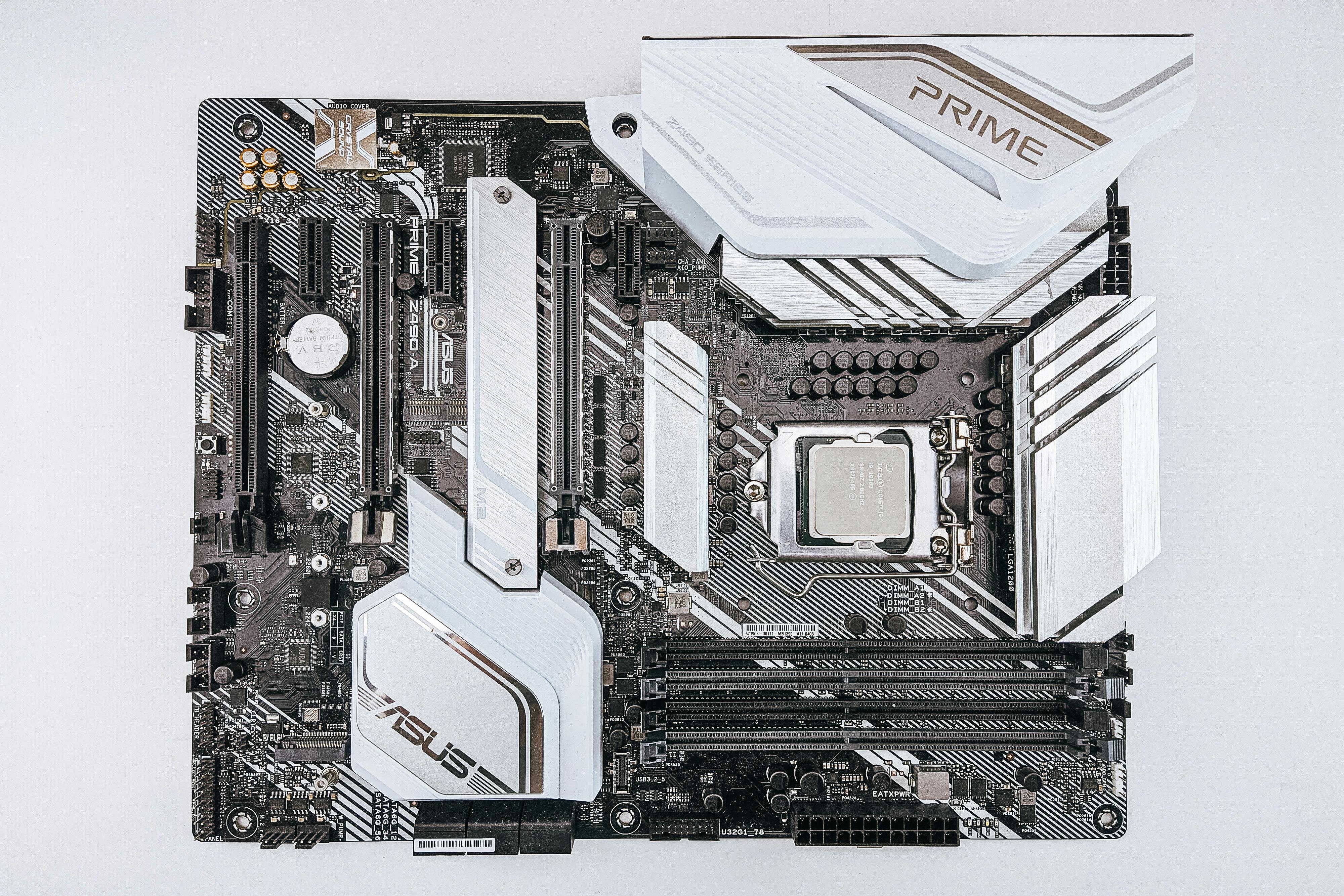
1. The Motherboard: The Central Nervous System
Imagine a sprawling city with intricate roads connecting every neighborhood. The motherboard is that city map. It’s the large, flat circuit board that every other piece of hardware plugs into or connects with. It doesn’t process information itself, but it allows the CPU, RAM, storage, and all other components to communicate. The type of motherboard determines what other hardware you can use, making it the foundational blueprint of your computer.
2. The CPU (Central Processing Unit): The Brain
Often just called the processor, the CPU is the brain of the operation. It sits on the motherboard (usually under a cooling fan) and carries out the instructions of a computer program. Every click, keystroke, and command goes through the CPU.
-
What it does: It performs calculations, logic, and input/output operations.
-
Analogy: If the computer were a kitchen, the CPU is the head chef—it doesn’t store the ingredients, but it directs all the activity, chops the vegetables (processes data), and follows the recipe (program instructions).
-
Key Spec: Its speed is measured in Gigahertz (GHz). A higher number generally means a faster processor, but efficiency and the number of “cores” (think of them as individual helpers for the chef) are equally important for modern multitasking.
3. RAM (Random Access Memory): The Active Workspace
RAM is your computer’s short-term memory. It’s where the CPU keeps the data it needs quick, immediate access to—like the applications you have open right now and the files you’re actively working on.
-
What it does: Provides fast, temporary storage for active tasks.
-
Crucial Difference from Storage: RAM is volatile. This means when you turn off the computer, the data in RAM is wiped clean. That’s why you lose an unsaved document when the power goes out—it was only in RAM.
-
Analogy: Using our kitchen, RAM is the countertop space. The more counter space (RAM) you have, the more recipes (programs) you can have out and actively work on at once without slowing down.
-
Key Spec: Measured in Gigabytes (GB). For basic use, 8GB is a modern minimum, but 16GB is recommended for comfortable multitasking.
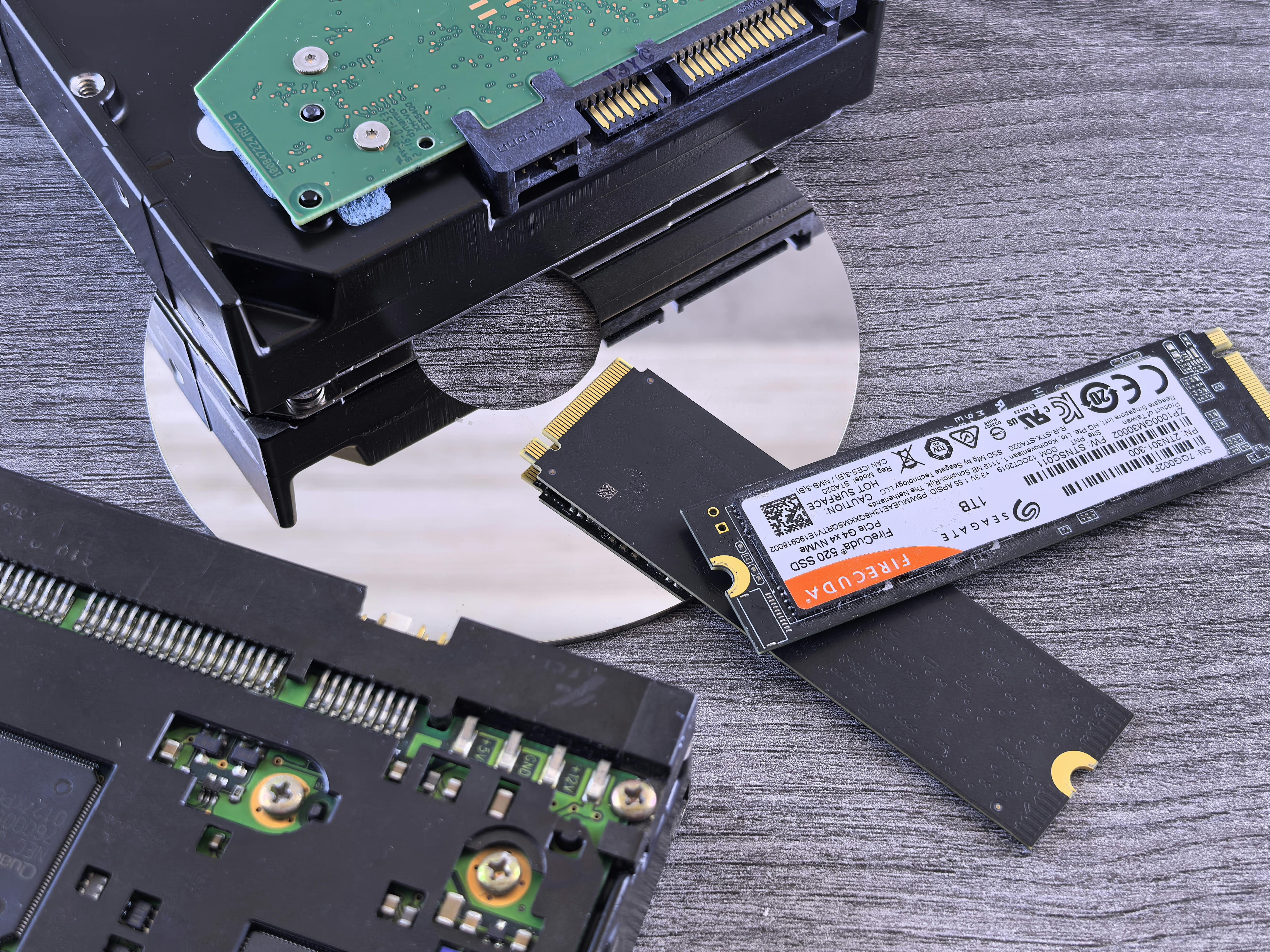
4. Storage (HDD & SSD): The Long-Term Memory
This is where your computer keeps everything permanently: the operating system (like Windows or macOS), your programs, photos, documents, and music.
-
HDD (Hard Disk Drive): The traditional technology. It uses spinning magnetic platters and a moving read/write head. Pros: Lower cost for more space. Cons: Slower, more prone to physical damage from bumps, and uses more power.
-
SSD (Solid State Drive): The modern standard. It has no moving parts and stores data on flash memory chips (like a large USB drive). Pros: Much faster (leading to quicker boot-ups and file loading), more durable, and energy-efficient. Cons: More expensive per gigabyte.
-
Analogy: Storage is the kitchen’s pantry and cupboards. It holds all your ingredients (files) long-term, even when the kitchen is closed (computer is off).
-
Key Spec: Measured in Gigabytes (GB) or Terabytes (TB). 1TB = 1000GB. A 256GB SSD is common for operating systems and key programs, with a 1TB+ HDD or SSD for media files.
The Input/Output System: How You Talk to the Computer and It Talks Back
These are the parts you interact with directly.
5. Power Supply Unit (PSU): The Heart
The PSU converts the wall outlet’s AC power into the low-voltage DC power the computer’s internal components need. It’s the lifeblood of the system. A reliable PSU is critical for system stability.
-
Key Spec: Wattage. A basic office PC might need 400-500 watts, while a high-performance gaming rig could require 750+ watts.
6. Graphics Processing Unit (GPU): The Creative Artist
Also known as the video card or graphics card. While the CPU is a generalist, the GPU is a specialist designed to rapidly manipulate and alter memory to accelerate the creation of images, videos, and animations.
-
Integrated Graphics: Built into the CPU or motherboard. Good enough for everyday tasks, web browsing, and video streaming.
-
Dedicated/Discrete Graphics: A separate card that plugs into the motherboard. Essential for gaming, video editing, 3D rendering, and advanced design work. It has its own dedicated RAM (called VRAM).
7. Input & Output Devices: Your Interfaces
-
Input Devices: How you give the computer data (Keyboard, Mouse, Microphone, Webcam, Scanner).
-
Output Devices: How the computer gives you data (Monitor, Speakers, Printer).
How It All Works Together: A Simple Example
Let’s say you double-click to open a photo.
-
Your mouse (input) sends the click signal.
-
The motherboard routes this signal to the CPU.
-
The CPU interprets the command and instructs the storage drive to find the photo file.
-
The photo data is loaded from storage into RAM for fast access.
-
The CPU works with the GPU to process the image data.
-
The GPU sends the final image signal through the motherboard to your monitor (output).
All of this happens in a fraction of a second, powered by the PSU.

Practical Hardware Tips for Every User
-
Upgrade for Speed: If your computer feels slow, the single best upgrade for a noticeable speed boost is often switching from an HDD to an SSD for your main drive. Adding more RAM is the next best step if you have many programs or browser tabs open at once.
-
Keep It Cool: Computers generate heat. Ensure the vents (usually on the back of a desktop or sides of a laptop) are not blocked by dust, books, or fabric. Overheating causes slowdowns and hardware damage.
-
Understand Your Needs: Buying a new computer? Match the hardware to your use:
-
Basic Browsing/Email: CPU with integrated graphics, 8GB RAM, 256GB SSD.
-
Office Work & Multitasking: Mid-range CPU, 16GB RAM, 512GB SSD.
-
Gaming & Creative Work: Powerful CPU, dedicated GPU, 16-32GB RAM, 1TB+ SSD.
-
Troubleshooting Common Hardware-Related Issues
-
Computer Won’t Start (No Lights/Fans): Likely a PSU or power connection issue. Check cables and power strips.
-
Extreme Slowness & Freezing: Could be maxed-out RAM, a slow HDD struggling, or an overheating CPU/GPU. Check task manager (Ctrl+Shift+Esc) to see RAM and CPU usage.
-
Screen Artifacts or Crashes in Games/Apps: Often a sign of an overheating or failing GPU.
-
“Boot Device Not Found” Error: The computer can’t find the operating system on your storage drive. The drive may have failed or become disconnected.
FAQ: Your Hardware Questions Answered
Q: How often should I replace my computer?
A: There’s no fixed rule. A well-chosen computer can last 5+ years for basic tasks. Consider replacing or upgrading when it no longer handles your daily needs efficiently, or when it can’t run security updates for its operating system.
Q: Can I build my own computer from parts?
A: Absolutely! It’s like adult LEGO. It requires research to ensure compatibility (the motherboard is key), but many find it rewarding and cost-effective. Numerous video guides online make it very accessible.
Q: Is more GHz always better for a CPU?
A: Not always. While GHz measures clock speed (cycles per second), efficiency, architecture, and core count are equally vital. A modern 3.5GHz processor can vastly outperform an older 4.5GHz one.
Q: What’s the difference between memory and storage?
A: This is the most common point of confusion. Memory (RAM) is short-term, fast, and cleared on shutdown. Storage (HDD/SSD) is long-term, slower (comparatively), and persists. You store your vacation photos on the SSD, but you load them into RAM to edit them.
Final Thoughts: Empowerment Through Understanding
You don’t need to know how to solder a circuit, but knowing the role of the CPU, RAM, and storage transforms your relationship with technology. It empowers you to make informed decisions, solve minor issues, and appreciate the incredible engineering humming quietly on your desk. The next time you hear a tech term, you can nod knowingly—you’ve got the hardware basics down.