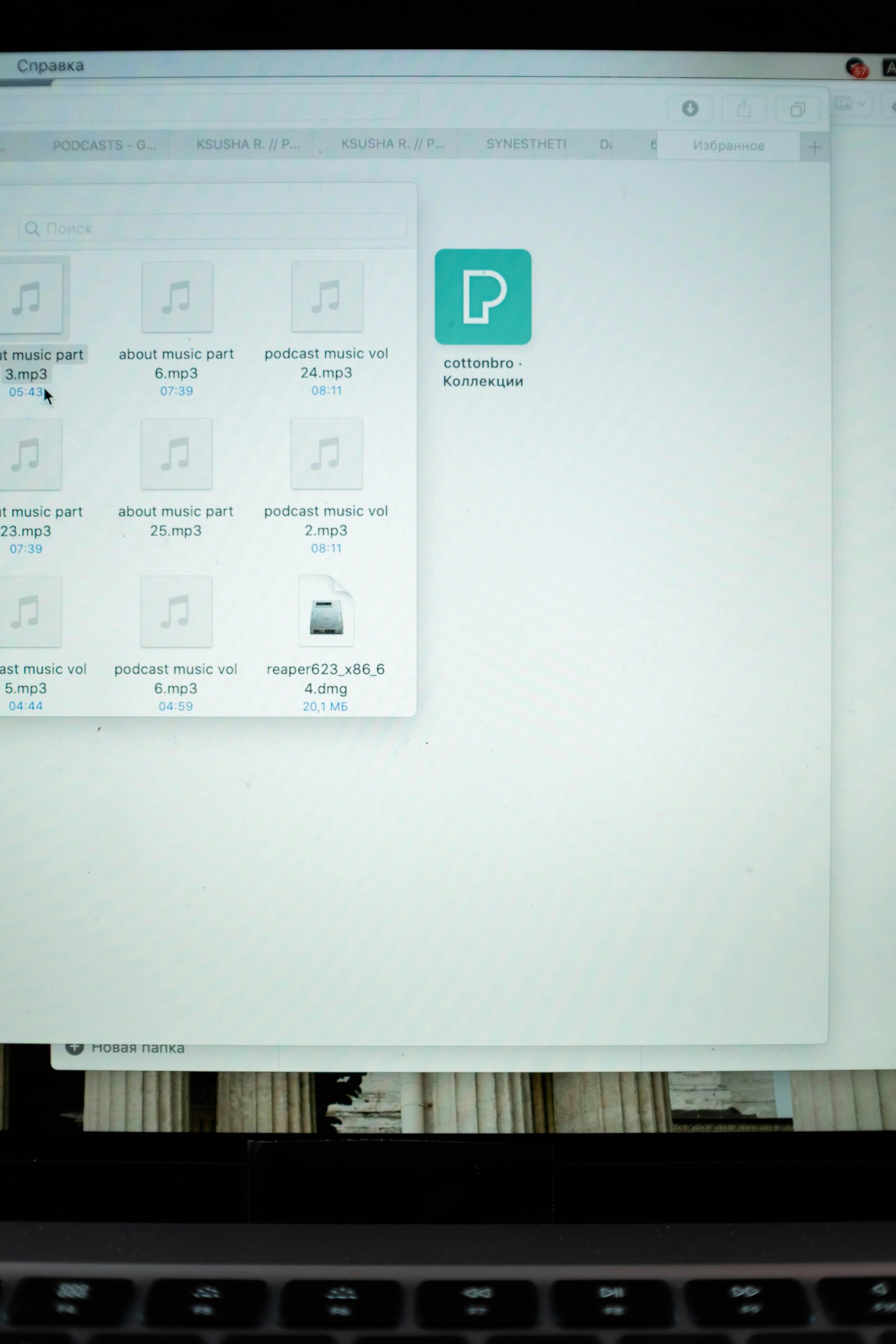
Do you ever feel like your computer is a messy room where you can never find anything? You know the file is “somewhere,” but searching feels like looking for a needle in a digital haystack. You’re not alone. The single most valuable—and most overlooked—skill for any computer user is mastering file and folder management. It’s the art of organizing your digital life. Think of it as creating a logical, intuitive filing system for everything you create, download, and save. This guide will transform you from a digital packrat into an organization pro, saving you time, stress, and countless frantic searches.
Why Bother? The Power of Being Organized
Before we dive into the “how,” let’s talk about the “why.” Good file management isn’t about being nitpicky; it’s about efficiency and peace of mind.
-
Find Anything in Seconds: No more scrolling through hundreds of untitled downloads.
-
Protect Your Work: Knowing where things are makes backing up easier and prevents accidental deletion.
-
Work Seamlessly Across Devices: A good structure makes sense whether you’re on your laptop, phone, or cloud storage.
-
Boost Your Productivity: Less time hunting means more time doing.
The best part? You can start fixing this today, no matter how chaotic your current system is.

Part 1: The Core Concepts – Files, Folders, and Paths
Let’s build our vocabulary with the basic building blocks.
1. The File: The Individual Document
A file is a single, named item. It could be a photo, a letter, a song, a spreadsheet, or an application. Every file has two key parts:
-
File Name: What you call it (e.g.,
Vacation_Photo). -
File Extension: The 3-4 letters after the dot (e.g.,
.jpg,.docx,.mp3). This tells the computer what kind of file it is and what program should open it. (Hint: It’s usually best to leave extensions visible).
2. The Folder (or Directory): The Digital Container
A folder is a container that holds files and other folders. Its sole job is to organize. You can name a folder anything and put anything inside it. Folders create structure and hierarchy, turning a flat list of 1,000 files into a manageable tree.
3. The Path: The Digital Address
The path is the exact “address” of a file on your drive. It maps the journey from the highest level (your drive) down through every folder to the file itself.
-
Windows Example:
C:\Users\[YourName]\Documents\Projects\Budget_2023.xlsx-
C:\= The main hard drive (C:). -
Users\[YourName]\= Your user account folder. -
Documents\Projects\= The nested folders. -
Budget_2023.xlsx= The target file.
-
-
macOS/Linux Example:
/Users/[YourName]/Documents/Projects/Budget_2023.xlsx-
The concept is identical, just using forward slashes (
/).
-
Understanding the path is like understanding how a home address works: Country > State > City > Street > House Number.
Part 2: Building Your System – A Practical, Sustainable Method
You don’t need a perfect system; you need a logical one that works for you. Here’s a proven method to set one up.
Step 1: Start with the “Big Buckets” – Your Main Folders
Instead of saving everything to your desktop or “Downloads,” create – and religiously use – a few broad main folders inside your Documents library. Think of these as the main drawers of your filing cabinet.
-
Personal: For anything non-work related (travel plans, hobbies, family documents). -
WorkorProjects: For all professional or major personal projects. -
Financial: For tax documents, receipts, bank statements. -
ArchiveorReference: For items you need to keep but rarely access (old projects, warranties, manuals). -
Media: While photos/videos/music have their own libraries (Pictures, Music), you might want a project-specific media folder here.
Step 2: Use Subfolders to Create Categories
This is where the magic happens. Inside each “big bucket,” create subfolders for specific categories, years, or projects.
-
Bad Structure:
Documents > Presentation.pptx(just a pile of files) -
Good Structure:
Documents/
└── Work/
    ├── Acme_Client/
    │   ├── Contracts/
    │   ├── Presentations/
    │   └── Invoices/
    └── Marketing_Campaign_Q3/
        ├── Graphics/
        ├── Copy/
        └── Budget.xlsx
Step 3: Master the Art of Naming
Clear names are everything. A good name tells you what the file is without opening it.
-
Be Descriptive:
Meeting_Minutes_ProjectAlpha_Feb2023.docxis better thanminutes.docx. -
Use Consistent Dates: Use the
YYYY-MM-DDformat. It sorts chronologically automatically. (e.g.,2023-11-15_Proposal.docx). -
Use Underscores or Dashes: Avoid spaces in file/folder names for web compatibility. Use
Project_Plan_V2orProject-Plan-V2. -
Version Control: Append
_v1,_v2, or_FINALto drafts. Never have just “Final_Final_REALLYFINAL.docx.”
Part 3: The Essential Tools & Actions
Your operating system gives you powerful tools to manage files. Here’s how to use them effectively.
1. File Explorer (Windows) / Finder (macOS):
This is your mission control. Learn its basic views:
-
List View: Great for seeing many files with details (date modified, type, size).
-
Icon/Thumbnail View: Best for images and visual work.
-
Column View (macOS Finder): Excellent for seeing your folder hierarchy.
2. The Crucial Actions:
-
Copy vs. Move: Copying (Ctrl+C/Cmd+C, then Ctrl+V/Cmd+V) creates a duplicate elsewhere. Moving (Cut: Ctrl+X/Cmd+X, then paste) takes the original file and relocates it. Use “Move” to keep your system clean.
-
Search is Your Friend: Use the search bar in Explorer/Finder. You can search by name, date, file type, or even words inside a document.
-
Sort and Group: Click the column headers (Name, Date Modified, Type, Size) to sort your files. You can often “group by” these categories to see all images together, all documents from last week, etc.
4. The Cloud: Your File System’s Best Friend
Services like Google Drive, Dropbox, or OneDrive are not just backup; they are active parts of a modern file system.
-
They Sync: A folder on your computer that stays identical online and on your other devices.
-
Best Practice: Keep your active
WorkorProjectsfolder insideGoogle DriveorOneDrive. It becomes automatically backed up, accessible anywhere, and easy to share.

Part 4: Pro Habits & Troubleshooting
Adopt These Habits:
-
The “Downloads” Triage: Weekly, go through your Downloads folder. Delete what you don’t need, and move everything else to its proper home in your system. Never work from files saved in Downloads.
-
Desktop is Not a Storage Unit: Your desktop should be a clean workspace, not a permanent home for files. It slows your computer down and causes visual stress. Keep only a few current, temporary items there.
-
The 5-Minute Rule: If you can’t find a file in 5 minutes, stop and spend 10 minutes organizing the relevant folder. Future you will be grateful.
-
Rename Immediately: The moment you save or download a file with a gibberish name (like
DOC-2342.pdf), rename it to something meaningful.
Common Problems & Solutions:
-
“I have duplicates everywhere!” Use a duplicate file finder tool (many are free). Then, implement the “move, don’t copy” rule.
-
“My folder is too full to navigate.” Create subfolders! Use dates, project phases, or file types to break it down.
-
“I don’t remember what I named a file.” Use search by date modified or file type. Next time, use more consistent naming.
-
“I’m scared to delete anything.” Create an
_Archiveor_ToSortfolder. Move old/unclear items there for review quarterly. This clears your active space without the anxiety of the recycle bin.
FAQ: Your File Management Questions Answered
Q: How is cloud storage (Google Drive) different from my C: drive?
A: Your C: drive is physical hardware inside your computer. Google Drive is a virtual folder that syncs with the internet. Files in your synced Google Drive folder live in both places. If your computer dies, the files are safe online.
Q: What’s the difference between “Save” and “Save As”?
A: Save updates the file you currently have open. Save As creates a brand new copy of the file, allowing you to give it a new name and/or location. Use “Save As” to create versions or to save a template without overwriting the original.
Q: How should I organize my photos?
A: Use the system provided! Both Windows Photos and macOS Photos allow you to create Albums (which are virtual groupings) without moving the original files. For raw files, use a folder structure like: Pictures > Year > 2023-11 Vacation to Colorado > [Individual Files].
Q: Is it okay to use emojis in folder names?
A: While fun, it’s not recommended for core systems. They can cause compatibility issues if you ever move files to a different operating system or server. Stick to letters, numbers, dashes, and underscores.
Q: How do I share a folder with someone?
A: The modern way is to put the folder in a cloud syncing service (like a shared folder in Dropbox) or use the built-in “Share” function in Windows/macOS to generate a link. Avoid emailing large folders directly.
Your Action Plan: Start Today
-
Open your
Documentsfolder right now. -
Create 3-5 “Big Bucket” folders (e.g.,
Personal,Work,Financial). -
Pick one messy area (your Desktop or Downloads). Spend 15 minutes sorting files into your new buckets or their subfolders.
-
Rename 5 important but poorly named files using the descriptive, dated format.
You don’t need to reorganize your entire life in one day. Consistent, small efforts—saving a new file to the right place, renaming a download—compound into a truly organized digital existence. The feeling of effortlessly locating exactly what you need is not just efficient; it’s empowering. You’ve got this