
Imagine you’re watching a professional video editor, developer, or even an efficient office manager work. Their hands rarely leave the keyboard. Windows and applications fly open, text is magically formatted, and tasks are completed in half the time. Their secret? Mastering keyboard shortcuts. This isn’t just a party trick for tech gurus; it’s one of the highest-impact skills any computer user can learn. This guide will demystify keyboard shortcuts, provide you with the essential ones to learn first, and offer a proven system for making them a seamless, effortless part of your daily workflow.
The “Why”: More Than Just Speed
Sure, keyboard shortcuts are fast. But the benefits run much deeper:
-
Reduced Physical Strain: Constantly switching between keyboard and mouse (a “context switch”) causes micro-interruptions in your flow and can contribute to repetitive strain injuries. Keeping your hands centered is more ergonomic.
-
Enhanced Focus: Your attention stays on your content, not on hunting for a toolbar button. This “flow state” is where real productivity happens.
-
Professional Competence: It signals proficiency and can significantly speed up complex, multi-step tasks.
-
Universal Power: Many core shortcuts work across virtually every application on your computer, giving you a superpower that transfers everywhere.
The best part? You don’t need to memorize hundreds of commands. Start with a handful and build naturally.
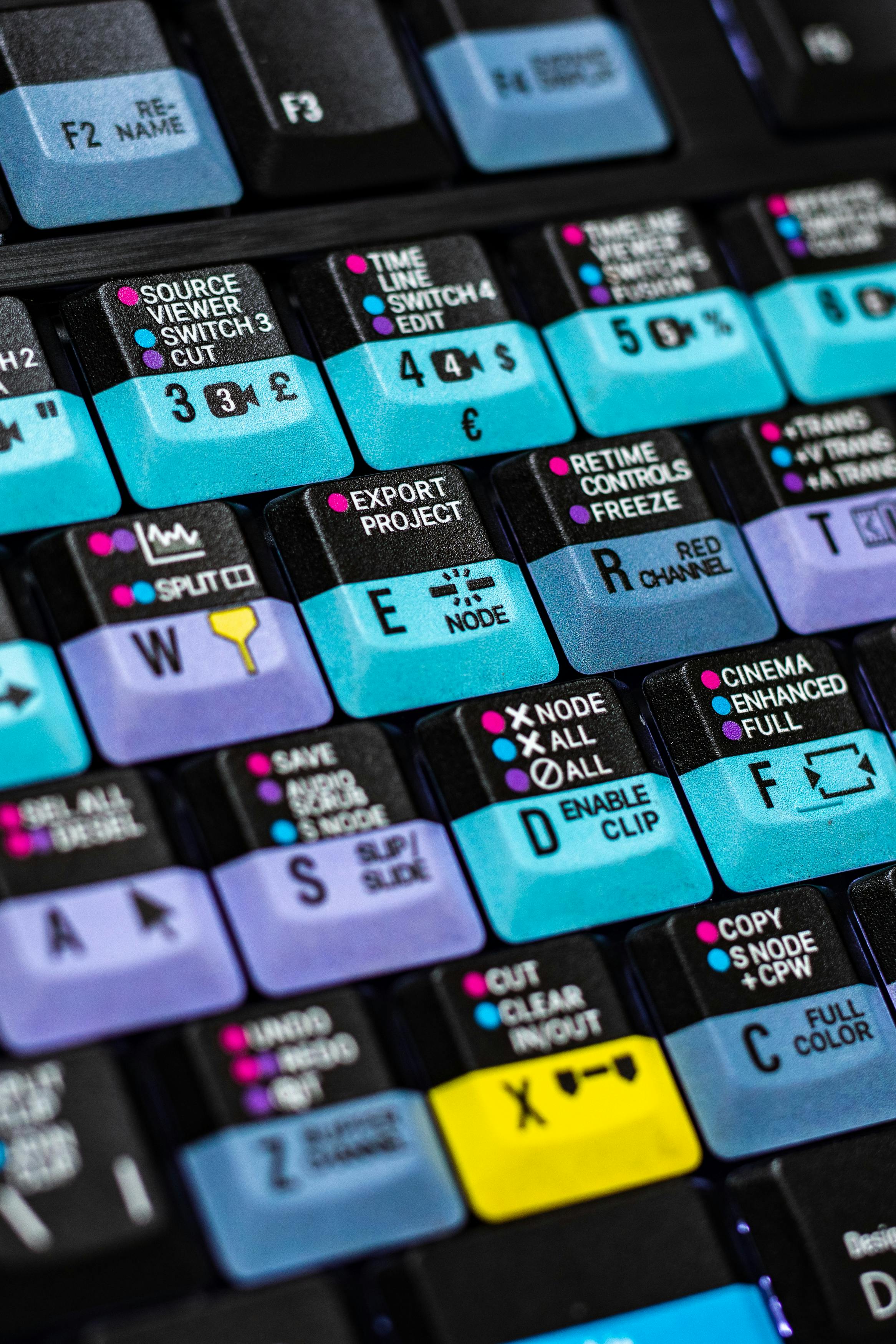
Part 1: The Foundation – Understanding “Modifier Keys”
All keyboard shortcuts are built from a combination of standard keys and special modifier keys. These keys modify the function of another key when pressed together.
-
Ctrl (Control): The primary modifier on Windows & Linux. It’s your command central.
-
Cmd (Command): The primary modifier on macOS (⌘). It occupies the same role as
Ctrlon Windows. -
Alt (Option on Mac): The secondary modifier. Often used for alternate functions or menu shortcuts.
-
Shift: The classic modifier for capital letters, but in shortcuts, it often extends a selection or does the “opposite” of a command.
-
Win (Windows Key) / Super (Linux) / Cmd (Mac): The “OS” key. Primarily used for system-level shortcuts (like opening the Start Menu or Spotlight).
How to Read Shortcut Notation:
-
Ctrl + Cmeans “Hold down the Control key, then press the C key, then release both.” -
Cmd + Option + Escmeans “Hold down Command and Option together, then press Escape.”
Part 2: The Essential Shortcuts – Your First 15 to Master
Start here. These are the universal building blocks. Practice them until they are muscle memory.
The “Holy Trinity” of Text & File Manipulation (Works Everywhere)
These three are non-negotiable:
-
Copy:
Ctrl + C(Win/Linux) |Cmd + C(Mac) -
Cut:
Ctrl + X(Win/Linux) |Cmd + X(Mac) -
Paste:
Ctrl + V(Win/Linux) |Cmd + V(Mac)
-
Pro Tip: Think of
Xas scissors (cut),Cfor copy, andVfor… well, the paste tip is shaped like a ‘V’. Or just remember them as a cluster on your keyboard.
Navigation & Selection Superpowers
-
Select All:
Ctrl + A/Cmd + A(Selects all text in a document or all files in a folder). -
Undo:
Ctrl + Z/Cmd + Z(Your “oh no” safety net. Most apps support multiple undos). -
Redo:
Ctrl + YorCtrl + Shift + Z/Cmd + Shift + Z(Reverse an undo). -
Find:
Ctrl + F/Cmd + F(Opens a search box in nearly any program or web browser. The single biggest time-saver for locating information). -
Save:
Ctrl + S/Cmd + S(Save your work. Do this obsessively!). -
Switch Applications:
Alt + Tab(Win) /Cmd + Tab(Mac) (HoldAlt/Cmd, tapTabto cycle through open apps).
Window Management (Tame Your Desktop)
-
Close Window/Tab:
Ctrl + W/Cmd + W(Closes the current tab in a browser or document window. Doesn’t quit the app). -
Reopen Closed Tab:
Ctrl + Shift + T/Cmd + Shift + T(A lifesaver in browsers). -
New Tab/Window:
Ctrl + T/Cmd + T(New browser tab);Ctrl + N/Cmd + N(New window in most apps). -
Minimize Window:
Win + Down Arrow(Win) /Cmd + M(Mac) -
Maximize/Restore Window:
Win + Up Arrow(Win) / (No universal Mac shortcut) -
Lock Your Computer:
Win + L(Win) /Ctrl + Cmd + Q(Mac) (Instant security when stepping away).
Part 3: Building a Learning System – From Novice to Ninja
You can’t learn 50 shortcuts at once. Use this systematic approach.
Phase 1: The 1-Week Drill (The First 15)
Pick 3 shortcuts from the list above. Use them exclusively for the next 2-3 days, even if it feels slower. Force your brain to rewire. When those feel natural, add 3 more.
Phase 2: Contextual Learning – “Learn One, Explore Its Family”
Shortcuts are often logical families. When you learn one, explore its siblings.
-
Learn
Ctrl + C(Copy)? TryCtrl + Shift + C(Copy formatting in many word processors). -
Learn
Ctrl + F(Find)? TryCtrl + H(Find and Replace). -
Learn
Ctrl + Z(Undo)? You already knowCtrl + Y(Redo).
Phase 3: Application-Specific Power-Ups
Once universal shortcuts are easy, add 2-3 power shortcuts for your most-used program (e.g., Photoshop, Excel, VS Code).
-
Example for Browsers:
Ctrl + L/Cmd + L(Jump to the address bar),Ctrl + Tab(Cycle through tabs). -
Example for Word/Google Docs:
Ctrl + B/Cmd + B(Bold),Ctrl + I(Italic),Ctrl + K(Insert link).
Phase 4: Muscle Memory & Discovery
-
Hover for Tooltips: In most applications, hover your mouse over a toolbar button. The tooltip will often show the keyboard shortcut.
-
Explore the Menus: The menu bar (File, Edit, View) lists shortcuts next to commands. This is a great discovery tool.
-
Use Cheat Sheets: Print a simple cheat sheet for your primary app and keep it by your monitor for a week.

Part 4: Advanced Efficiency & Platform Nuances
Windows-Specific Power Moves:
-
Virtual Desktops:
Win + Ctrl + D(Create new desktop),Win + Ctrl + Left/Right Arrow(Switch between desktops). Great for separating work, personal, and project spaces. -
Snap Windows:
Win + Left/Right Arrow(Snaps a window to half the screen).Win + Up/Down Arrow(Maximize/minimize/restore). -
Emoji/Quick Access Menu:
Win + .(period) orWin + ;(semicolon) opens the emoji and symbol panel.
macOS-Specific Power Moves:
-
Spotlight Search:
Cmd + Space(Your ultimate launcher for apps, files, calculations, and web searches). -
Screenshot:
Cmd + Shift + 3(Full screen),Cmd + Shift + 4(Select area),Cmd + Shift + 5(Full control panel). -
Quick Look: Select a file and press
Spacebarto preview it without opening an app.
The Universal Productivity Hack: Text Expanders
Take shortcuts beyond navigation. Use a text expander app (like TextExpander, Espanso, or even built-in tools) to create shortcuts for text snippets.
-
Example: Type
;emland it automatically expands to your full email address. -
Example: Type
;sigand it inserts your professional email signature.
This is the logical, powerful evolution of keyboard shortcuts.
FAQ: Your Keyboard Shortcut Questions Answered
Q: What if a shortcut doesn’t work?
A: First, ensure you’re using the correct modifier key for your OS (Ctrl vs. Cmd). Second, the application must be in focus (the frontmost window). Third, some web apps (like Google Docs) may intercept browser shortcuts; you might need to use Ctrl + Shift + C instead of just Ctrl + C. Check the app’s help menu.
Q: How do I create my own custom shortcuts?
A: Both Windows and macOS allow you to create custom shortcuts for launching applications or scripts, usually through System Preferences (Mac) or by editing a shortcut’s Properties (Windows). Third-party tools like AutoHotkey (Win) or Keyboard Maestro (Mac) offer limitless customization.
Q: Are shortcuts the same on a laptop keyboard?
A: Mostly yes, but laptop keyboards often require a Function (Fn) key to access secondary keys (like F1-F12). Some shortcuts, like volume or brightness controls, are printed on those keys. You may need to press Fn + [Key] or change a setting in your BIOS/system preferences to use the standard F-key functions.
Q: I’m left-handed. Are there alternative layouts?
A: Absolutely. You can remap any key on your keyboard using your OS’s accessibility settings (e.g., Windows has “SharpKeys,” macOS has a built-in keyboard modifier). You could, for instance, swap Ctrl and Alt to have the primary modifier closer to your dominant hand.
Q: What’s the single best shortcut to learn first?
A: Ctrl + F / Cmd + F (Find). It instantly grants you the power to locate any word on any webpage or in almost any document, saving you endless scrolling.
Your Action Plan: Start Today
-
Commit to the Mouse-Free Minute: For your next email, try to write and send it using only the keyboard. Use
Tabto move between fields, and the shortcuts above. -
Print a Cheat Sheet: A simple one with the “Essential 15” is all you need. Tape it to your monitor.
-
Pick Your “Shortcut of the Day”: Tomorrow, you will use
Ctrl + L/Cmd + Lto jump to your browser’s address bar every single time. No exceptions. -
Right-Click with the Keyboard: In Windows, press the Menu Key (between Alt and Ctrl on the right) or
Shift + F10. On Mac, it’s rarely used, but you can enable it. This opens context menus without the mouse.
Keyboard shortcuts are a language of efficiency. You don’t need to be fluent overnight. By learning one “word” at a time, you’ll soon be having full, rapid conversations with your computer, unlocking a level of speed and control you never thought possible. Your mouse will thank you for the vacation.